
Moving inspection records from Excel into dedicated inspection management software can improve data accuracy, reporting, and asset visibility. However, a poorly planned migration can also create duplicate assets, missing inspection dates, broken certificate links, and incomplete inspection histories.
For oil and gas inspection companies, the goal should not simply be to import old Excel files. Instead, the goal is to create a reliable, searchable asset inspection history that inspectors, coordinators, QHSE teams, and management can use long after the migration is complete.
This guide explains a practical approach to migrating Excel inspection records while preserving asset history.
Excel works well for small inspection lists. However, as inspection programs grow, organizations often end up with multiple spreadsheets containing overlapping information.
For example, one file may contain:
Another spreadsheet may contain historical reports, while a third may track corrective actions.
As a result, the same asset can appear several times with slightly different names or identifiers.
| Problem | Potential impact |
|---|---|
| Duplicate asset IDs | Multiple histories for the same asset |
| Inconsistent asset names | Difficult asset tracking |
| Missing inspection dates | Incomplete inspection timeline |
| Different date formats | Incorrect sorting and reporting |
| Missing certificate references | Weak evidence trail |
| Deleted or overwritten rows | Loss of historical information |
| Multiple spreadsheets | Fragmented asset history |
| Manual updates | Data entry errors |
Therefore, before importing anything, organizations should understand what their existing Excel data actually represents.
A successful inspection data migration starts by separating asset information from inspection history.
Your migration may include several related data groups.
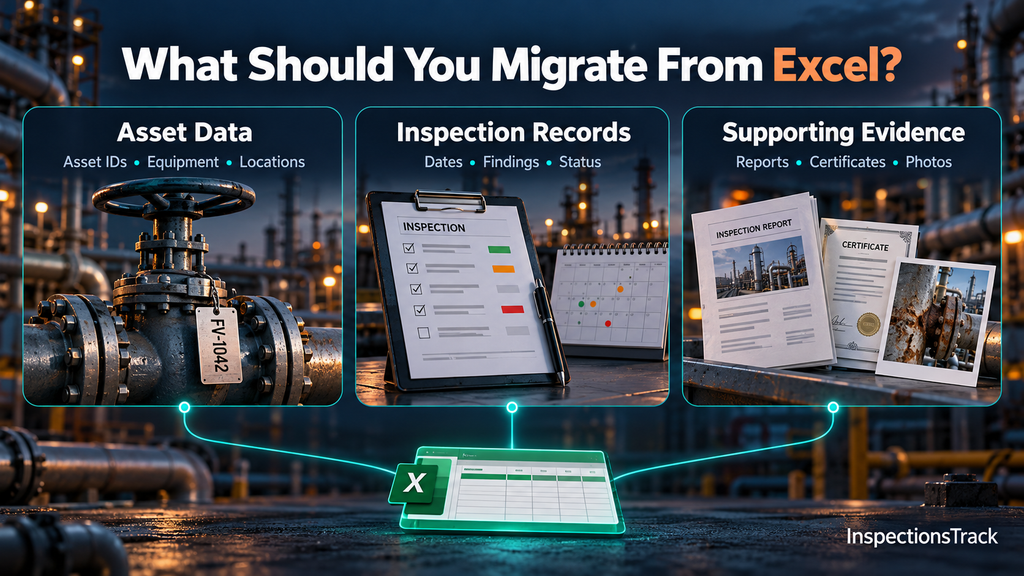
This identifies the equipment or asset being inspected.
Typical fields include:
These describe individual inspections performed against an asset.
Important fields include:
Historical inspection evidence can be just as important as the inspection record itself.
Depending on your process, this could include:
The objective is to connect these records to the correct asset and inspection event.
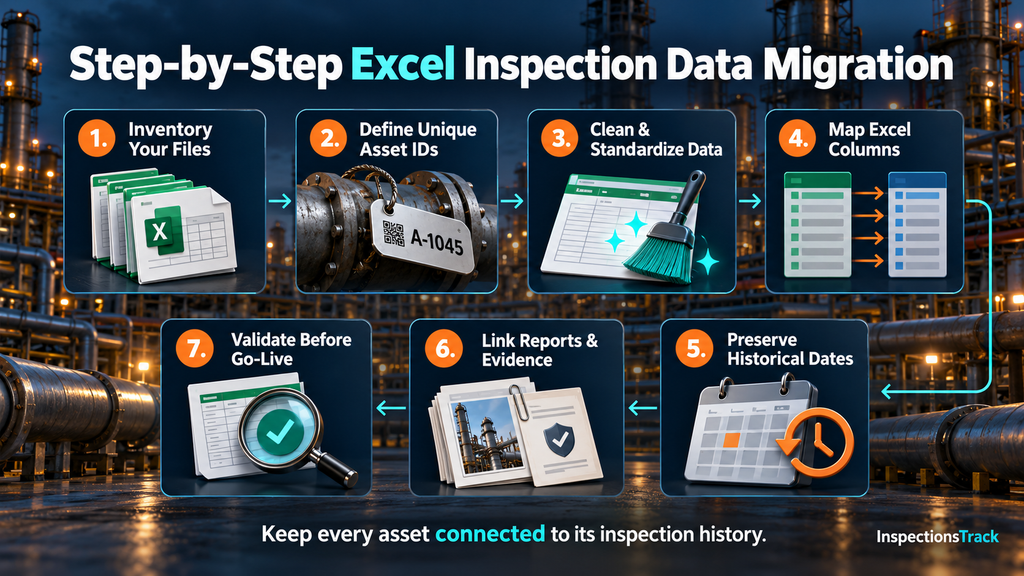
Before importing your data, identify every spreadsheet used for inspection management.
Create a simple inventory such as:
| Excel File | Data Type | Period | Owner | Migration Required |
|---|---|---|---|---|
| Asset Register.xlsx | Assets | 2018–2026 | Operations | Yes |
| NDT History.xlsx | Inspections | 2020–2026 | Inspection Team | Yes |
| Certificates.xlsx | Certificates | 2021–2026 | QHSE | Yes |
| Old Jobs.xlsx | Completed Jobs | 2016–2019 | Admin | Review |
This step prevents important historical information from being overlooked.
This is one of the most important steps in the entire migration.
Every asset should have a reliable identifier that remains consistent across its inspection history.
For example:
Asset ID: CRN-0458
Instead of creating a new asset every time an inspection appears in Excel, connect each inspection to the same asset.
Before migration:
Crane 45
Crane-045
CRANE 45
C-45
After data cleansing:
CRN-0045
All historical inspections should then point to the same asset record.
This creates a continuous inspection timeline rather than several disconnected records.
Do not import raw spreadsheets immediately.
First, standardize the data.
For example:
| Before | Standardized |
|---|---|
| UT Inspection | UT |
| Ultrasonic Testing | UT |
| Ultrasonic Test | UT |
| MPI Test | MPI |
| Magnetic Particle Inspection | MPI |
Standardization makes filtering, reporting, and historical analysis much more reliable.
Before importing data, create a data mapping document.
For example:
| Excel Column | Destination Field | Action |
|---|---|---|
| Equipment No. | Asset ID | Standardize |
| Equipment Name | Asset Name | Clean |
| Inspection Date | Inspection Date | Convert format |
| Inspector | Inspector | Match user |
| Test Type | Inspection Type | Standardize |
| Findings | Findings | Import |
| Next Due | Next Inspection Date | Validate |
| Report File | Report Attachment | Link/import |
This mapping acts as a migration blueprint.
It also helps identify fields that do not have an equivalent in the new system.
Inspection history depends heavily on dates.
Do not replace an old inspection date with the migration date.
For example, if an inspection took place on:
15 March 2022
the migrated record should still show:
15 March 2022
not the date on which the record was imported.
Similarly, preserve:
This allows users to understand the actual inspection history of an asset.
An inspection record without its supporting evidence may provide only part of the historical picture.
Therefore, document migration should follow the asset and inspection structure.
For example:
Asset → Inspection → Report → Photos → Certificate
This relationship allows users to open an asset and review its inspection history together with supporting evidence.
For oil and gas inspection companies, this can be particularly useful when teams need to review previous inspection findings, certificates, photographs, or reports before carrying out the next inspection.
Never assume that a successful import means a successful migration.
After importing the data, compare the original Excel files against the new system.
For example:
Excel contains 8,450 historical inspection records.
After migration:
System contains 8,450 historical inspection records.
If the numbers do not match, investigate the difference before finalizing the migration.
For oil and gas inspection companies, InspectionsTrack can provide a structured environment for managing inspection records instead of relying on disconnected Excel spreadsheets.
The platform is designed around inspection operations, including asset records, inspection workflows, reports, certificates, evidence, and historical information.
Sky Soft Connections develops InspectionsTrack as an inspection management solution for industries that need structured inspection records and traceability.
With InspectionsTrack, migrated historical information can become part of an ongoing inspection workflow rather than remaining in a separate archive.
This approach allows teams to move from Excel-based historical records toward a centralized inspection history.
Some migration approaches create problems later.
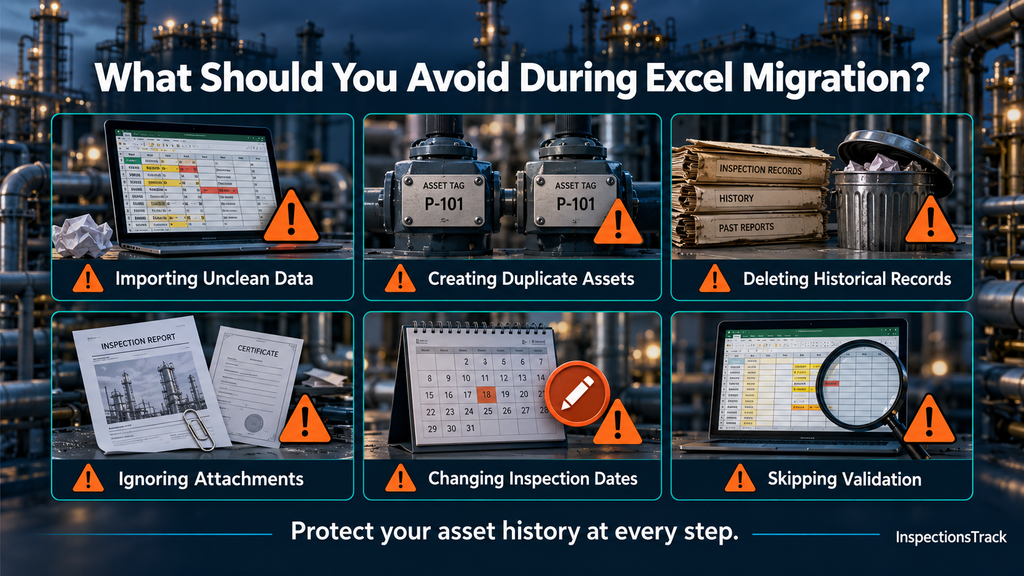
1. Importing everything without cleaning it
Dirty data simply becomes dirty data inside the new system.
2. Creating new assets for every historical row
This can break the asset’s inspection timeline.
3. Removing old records because they appear outdated
Historical inspections can still provide valuable evidence about asset condition and previous findings.
4. Ignoring attachments
Reports, certificates, and photographs may be essential evidence.
5. Changing historical dates
The original inspection date should remain intact.
6. Skipping post-migration validation
Always compare migrated records with the source data.
A simple migration model can look like this:
Excel Asset Register
        ↓
Data Cleaning & Standardization
        ↓
Unique Asset Identification
        ↓
Asset Master Records
        ↓
Historical Inspection Records
        ↓
Reports / Certificates / Photos
        ↓
Validation & Reconciliation
        ↓
Centralized Inspection History
This structure helps preserve relationships between assets, inspections, and evidence.
A successful migration should allow an authorized user to select an asset and quickly answer questions such as:
If users still need to open multiple Excel files to answer these questions, the migration has not fully solved the underlying problem.
Yes. Historical Excel records can generally be migrated after they are cleaned, standardized, mapped, and validated against the destination system.
Use a consistent unique asset identifier and map historical inspection records to that identifier instead of creating a new asset for every spreadsheet row.
In most inspection environments, historical records can provide valuable asset history, compliance evidence, and context for future inspections. The exact retention requirements should also be considered.
Reports, certificates, photographs, and other evidence should be mapped to the appropriate asset and inspection record so users can access the supporting history.
InspectionsTrack can provide a centralized environment for managing inspection records, asset history, reports, certificates, evidence, and inspection workflows, reducing dependence on disconnected spreadsheets.
Before completing your migration, confirm that:
Migrating inspection records from Excel is more than a simple data import. The real objective is to preserve the relationship between assets, inspections, findings, reports, certificates, and historical evidence.
By cleaning your Excel data, establishing unique asset IDs, mapping historical records carefully, preserving original dates, and validating the final dataset, you can create a reliable inspection history.
For oil and gas inspection companies, a platform such as InspectionsTrack can then bring that historical information into a structured inspection workflow, helping teams manage current inspections while retaining the history that supports future decisions, reporting, and traceability.

Your inspectors identify equipment defects, while your maintenance team plans the repairs. However, when both teams rely on disconnected spreadsheets and reports, important findings can lose their connection to the actions they require. Choose inspection…

An inspection report may be approved by a client, but that does not always mean the document is final forever. In oil and gas inspection projects, new evidence, technical corrections, client requests, or internal reviews…


Comment (1)
Inspection Software vs CMMS: Which Fits Oil & Gas Teams - inspectionstrack
Oct 02, 2026[…] Read more : How to Migrate Inspection Records from Excel Without Losing Asset History […]
Comments are closed.